Build a Client Document Checklist With AI (No Coding)
A sandbox walkthrough: ask Gemini with Canvas to build a one-page client document checklist, fix what it gets wrong, and print a what-to-send list. Fake data only.

Hellospark · Hellospark
7 min read ·
Disclaimer. This article is general information about using AI tools for practice admin. It is not tax, legal or professional-responsibility advice. Hellospark is a technology consultancy, not a law or accounting firm. Do not paste real client data into a public chatbot. Read the IRS AI guidelines and your bar or board rules yourself, and ask a qualified professional about your situation. This post was drafted with AI assistance and reviewed by the Hellospark team. The build described here is a sandbox session with fake data only (client name Alex Rivera, due date November 15, 2026).
In this article · 8 sections
- What are we building?
- How do you start the build in Gemini with Canvas?
- What does the first version look like?
- How do you fix what the AI got wrong?
- What does the finished checklist include?
- How would a solo lawyer or small business reuse this?
- What should you do this week?
- Sources
- Frequently asked questions
Every tax season starts the same way for a solo preparer: chasing W-2s, 1099s and prior returns by email and voicemail. Solo lawyers have the same problem with intake packets. You do not need a custom app for that chase. You need a one-page checklist a client can tick, plus a printable list of what is still missing.
How do you build a client document checklist with AI and no coding? We ran a sandbox session in Gemini with Canvas and asked it to generate a self-contained HTML page. Fake client only: Alex Rivera, due date November 15, 2026. No real returns, no SSNs, nothing stored on a server. This post is the exact prompt, what went wrong, the fix, and the finished features — so you can repeat the pattern for tax, legal intake or any small-business document chase.
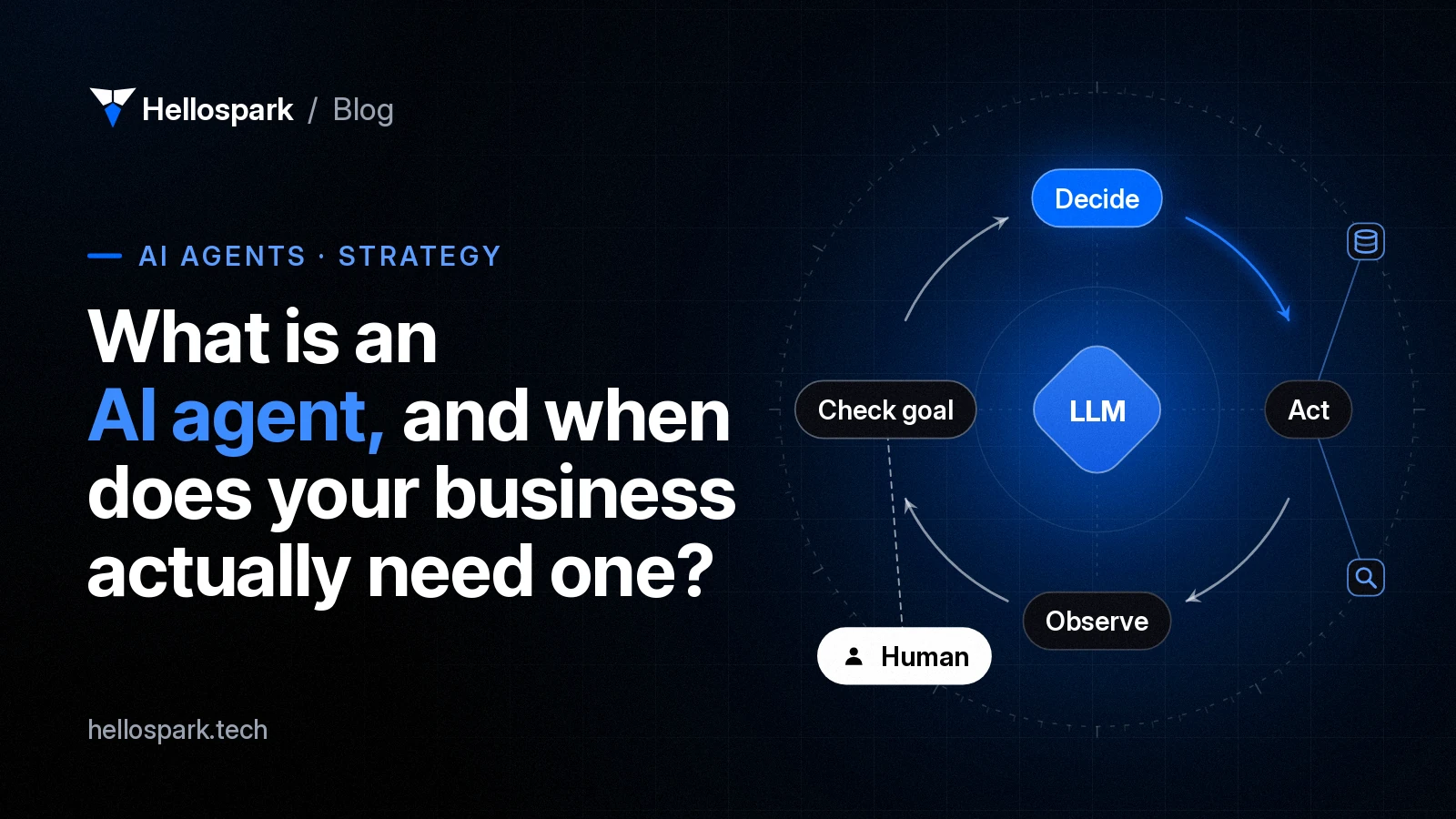
If you want the bigger picture of when a chat turns into a tool that takes steps for you, start with what an AI agent actually is. For client-data rules that sit beside this kind of admin tool, see the IRS AI guidelines for tax preparers and the JofA AI cyber risks checklist for CPAs.
What are we building?
A client document-request checklist: one HTML page that runs in the browser, with:
- A client name field and a requested due date
- Checkboxes for the documents you usually need
- A live “What to Send Me” list of unchecked items
- A print button for a short request letter
- No backend and nothing stored remotely — ticking a box only updates the page in front of you
That last point matters. The finished page does not upload the checklist to a server. The risk that remains is the design chat itself: anything you type into Gemini still goes to Google. Keep the build on fake data.
How do you start the build in Gemini with Canvas?
- Open gemini.google.com and start a new chat.
- Open the + menu under the prompt box and turn on Canvas.
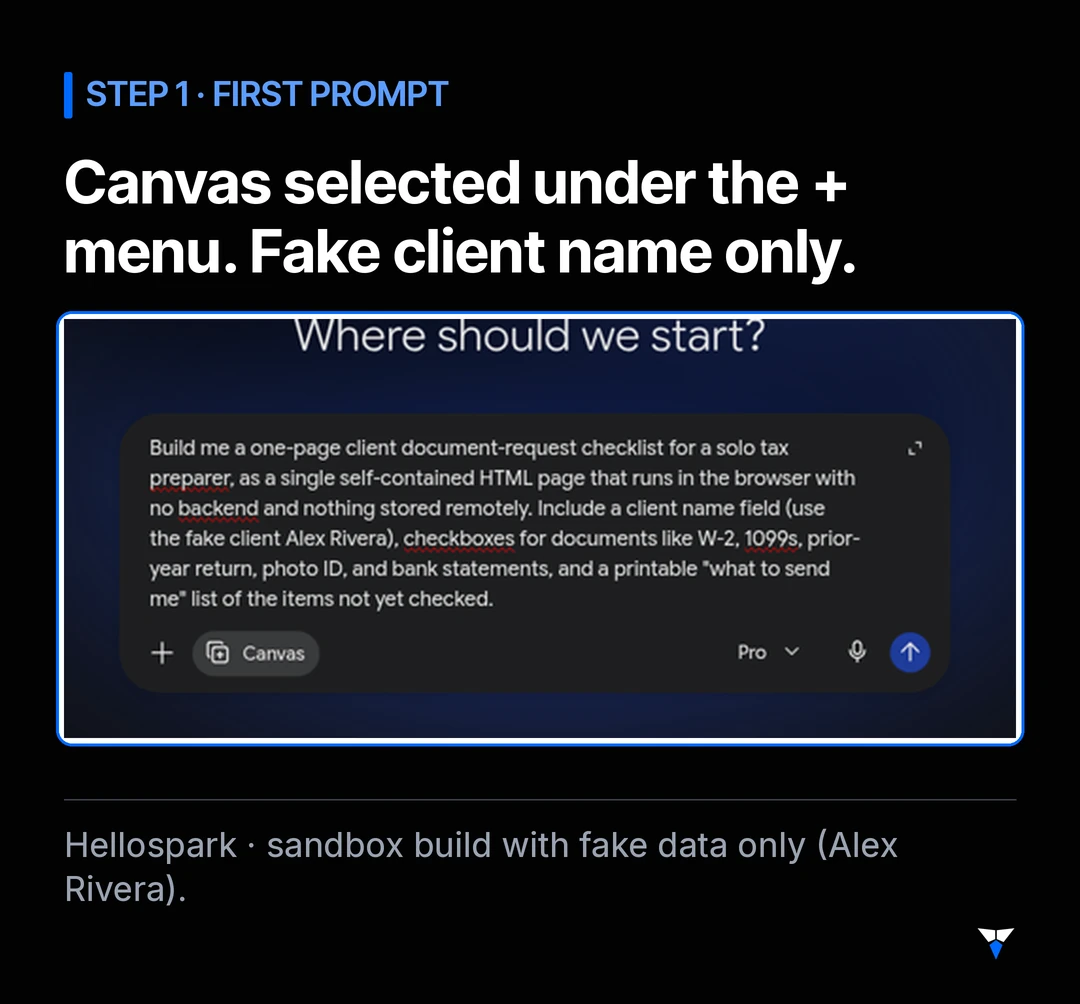
- Paste a plain-English brief that names the audience, the fake client, the document types and the “runs in the browser only” rule.
This was the exact first prompt we used:
Build me a one-page client document-request checklist for a solo tax preparer, as a single self-contained HTML page that runs in the browser with no backend and nothing stored remotely. Include a client name field (use the fake client Alex Rivera), checkboxes for documents like W-2, 1099s, prior-year return, photo ID, and bank statements, and a printable “what to send me” list of the items not yet checked.
What does the first version look like?
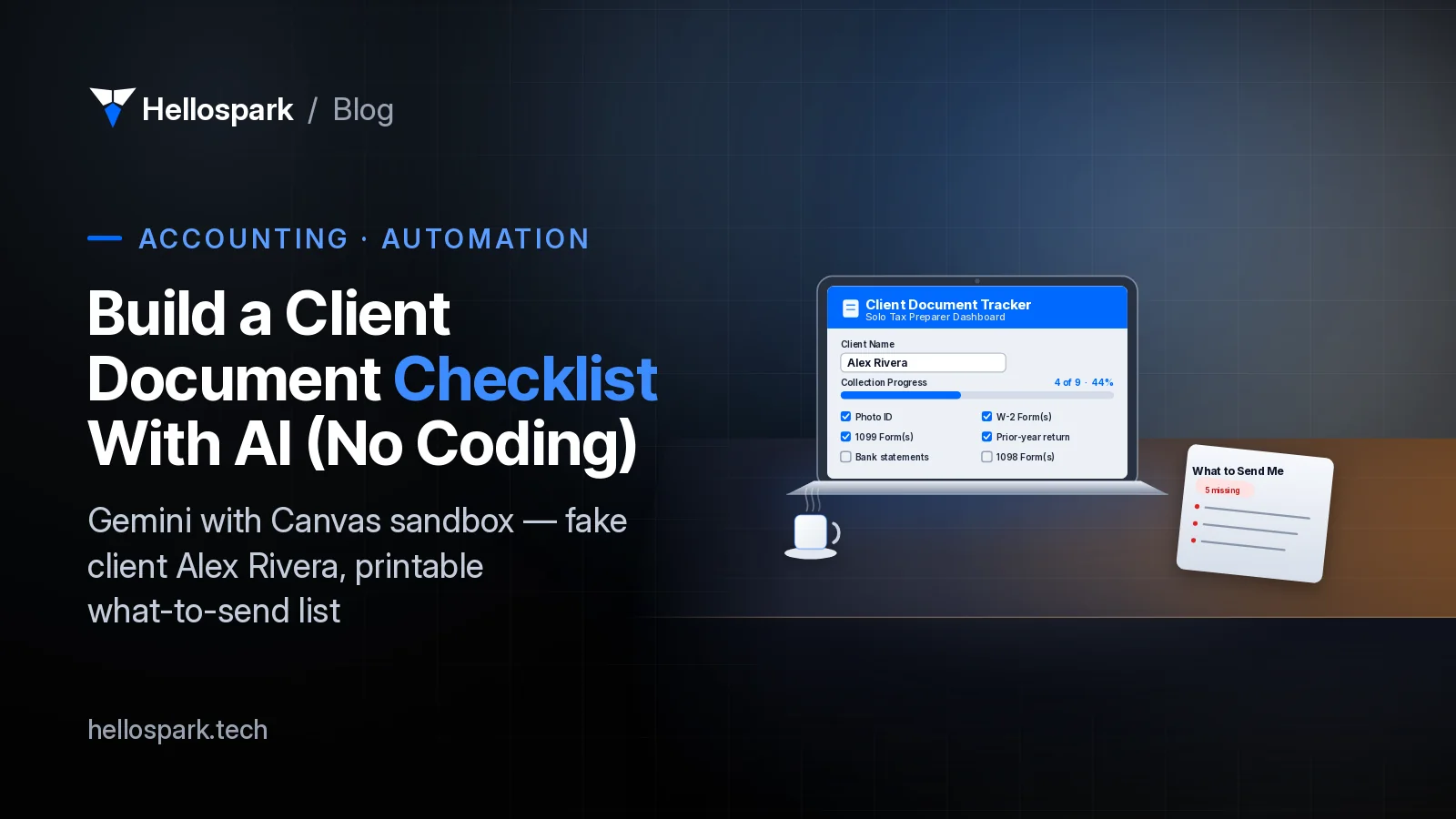
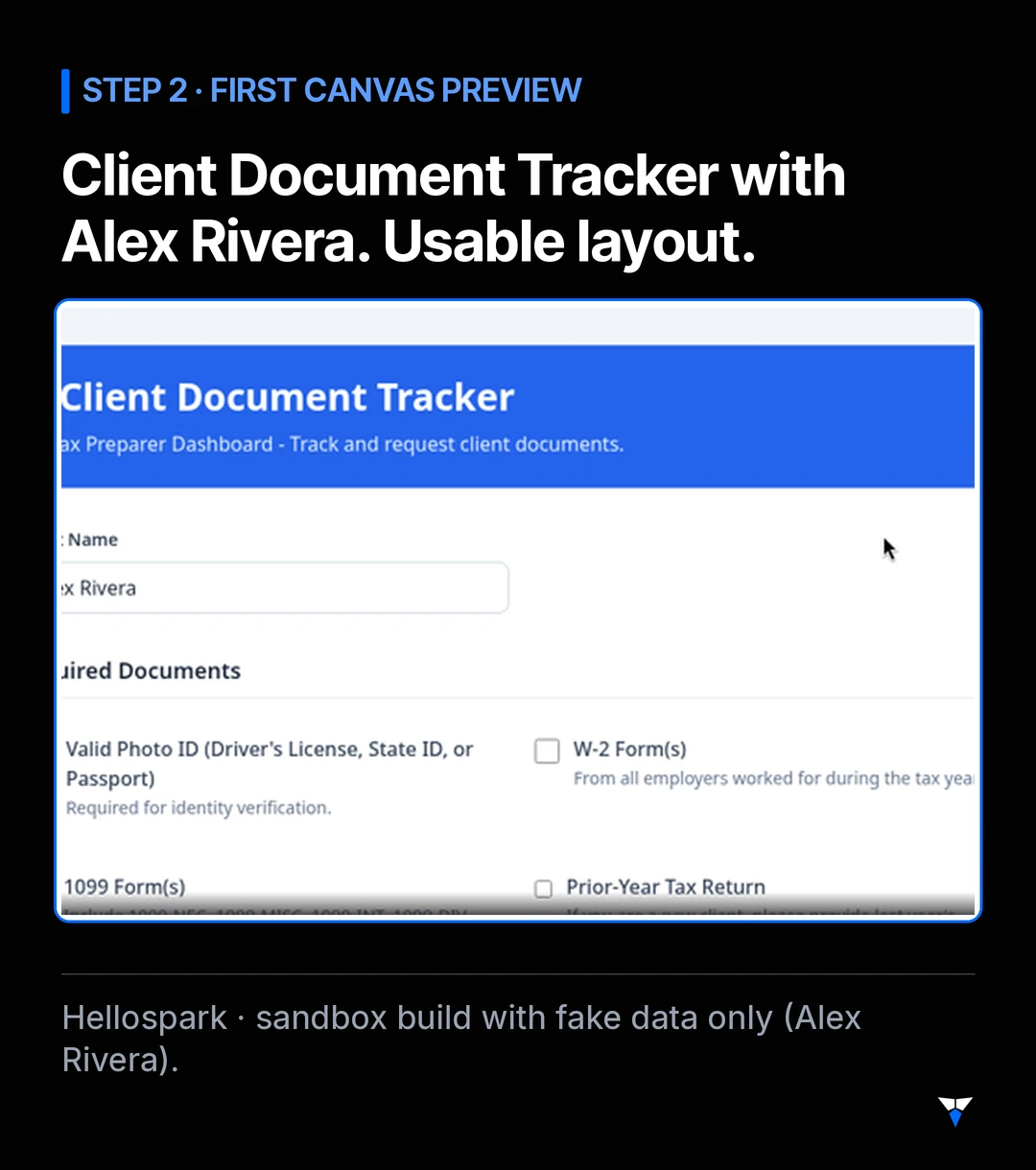
Canvas opened a preview titled Client Document Tracker (file name “Tax Document Checklist”). The first pass already had:
- A client name field prefilled with Alex Rivera
- A two-column checkbox grid (photo ID, W-2, 1099s, prior-year return, and more)
- A printable missing-items list and a print control
Two things went wrong before we trusted it:
- Mid-generation reCAPTCHA. Google showed an “unusual traffic” page. Ticking “I’m not a robot” cleared it, but that first generation was lost. We re-sent the same prompt in the chat and continued.
- Wrong bank item. We asked for “bank statements.” Gemini produced “Bank Account Information” (routing / account number language). That is the opposite of what a careful preparer wants on a client-facing checklist.
Everything else in that first preview worked: checkboxes, a live missing list and a print button.
How do you fix what the AI got wrong?
Say what to replace, what to add, and what new fields you need. This was the exact follow-up:
Two fixes: I asked for bank statements but the list only has “Bank Account Information” - please replace it with “Bank statements (last 12 months)” and add “Last year’s refund or IRS letters”. Also add a due date field (use a fake date, November 15) that shows in the “what to send me” list, plus a progress bar showing how many documents are received.
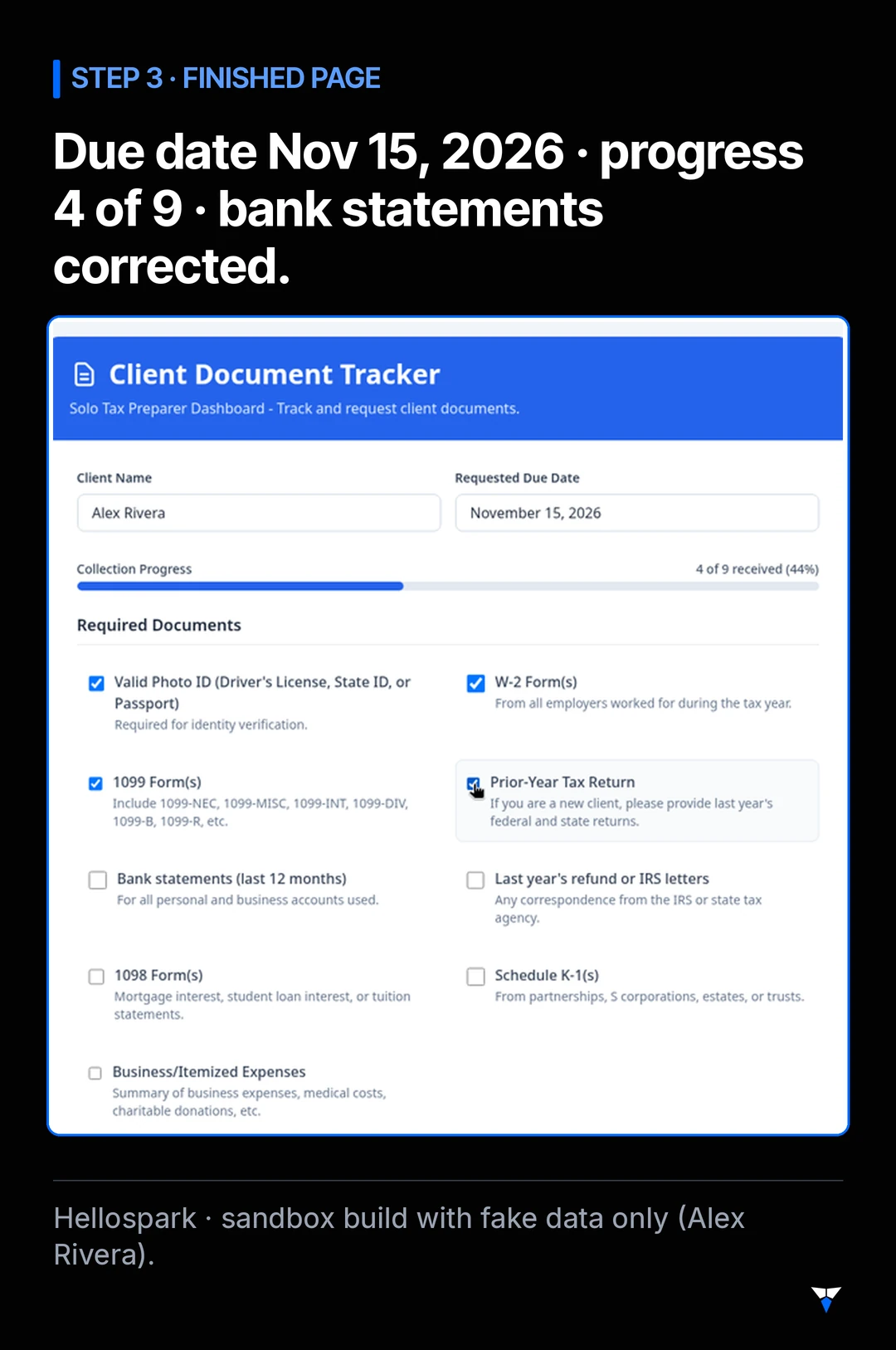
Result after the follow-up:
- “Bank Account Information” → Bank statements (last 12 months)
- New item: Last year’s refund or IRS letters
- Requested due date field (November 15, 2026), shown in the request letter
- Collection progress bar (“4 of 9 received (44%)” once we ticked four boxes)
What does the finished checklist include?
| Feature | What we ended up with |
|---|---|
| Client fields | Name (Alex Rivera) and requested due date (November 15, 2026) |
| Document checkboxes (9) | Photo ID; W-2; 1099; Prior-year return; Bank statements (last 12 months); Last year’s refund / IRS letters; 1098; Schedule K-1; Business / itemized expenses |
| Progress | Count and percent of received items |
| Missing list | Live “What to Send Me” list with name, due date and a missing-count badge |
| “Print Request Letter” button; print styles hide the controls | |
| Hosting model | Self-contained HTML (Tailwind in our run); no backend; nothing stored remotely |
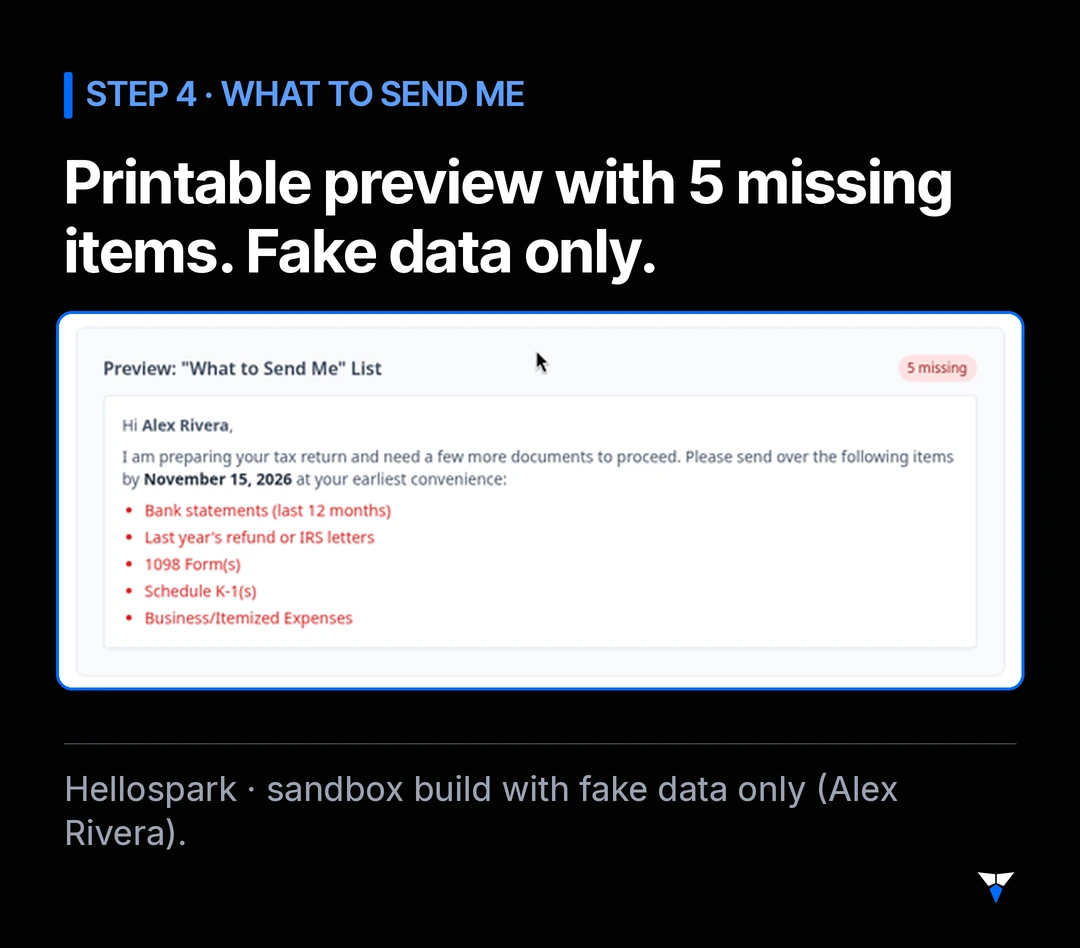
The on-screen letter for the five unchecked items looked like this (still fake data):
We did not complete a Canvas export/share step in this session. When you do, save the HTML somewhere you control and open it locally before you ever point a real client at it.
How would a solo lawyer or small business reuse this?
Same pattern, different checklist:
- Tax preparer: W-2, 1099s, prior return, bank statements, IRS letters (this build).
- Solo lawyer: signed engagement letter, photo ID, retainer confirmation, prior pleadings, insurance card — still fake names while you design.
- Other small business: onboarding docs, signed estimate, photos of the job site, payment method on file.
The AI is drafting the page. You still own the document list, the due date and the decision to send the letter. That matches the spirit of the IRS OPR AI guidelines: treat model output as a draft, verify it, and keep client return data out of tools that are not approved for it. The JofA Baseline Security Checklist puts the same idea under AI governance: inventory approved tools, keep sensitive data out of unauthorized chats, and review AI-built pages before you rely on them.
What should you do this week?
- Open Gemini with Canvas in a new chat (do not reuse a thread that already has client facts).
- Paste a brief that names fake client data, your document list and “no backend / nothing stored remotely.”
- Review every checkbox label. If the model invents “account numbers” where you asked for “statements,” fix it in a follow-up before you celebrate the preview.
- Fill the page with fake ticks, print the letter once, and check that the missing list matches reality.
- Only then decide whether to export the HTML and keep it next to your engagement or organizer templates — still without pasting real SSNs into the design chat.
- Add the tool to your approved-AI list and your WISP (or law-firm equivalent) if it will ever sit near real client files.
Sources
- Hellospark sandbox session, 25 Oct 2026: Gemini with Canvas build of a client document-request checklist; fake client Alex Rivera; due date November 15, 2026; reCAPTCHA interruption and bank-statements label fix recorded in internal session notes (not published).
- Gemini (Google) — product used for the Canvas build; we do not claim a specific price tier in this post.
- Related Hellospark guides: IRS AI guidelines for tax preparers, JofA AI cyber risks checklist for CPAs, What is an AI agent?.
If you want help turning a checklist like this into a small tool that fits your practice — without putting client files in the wrong chat — book the 1-hour AI setup ($100) or a free 15-min fit call.
Frequently asked questions
Do I need to know how to code?
No. In this walkthrough we typed plain English into Gemini with Canvas, reviewed the preview, and asked for fixes in follow-up messages. You should still read every field and label before you use the page with a real client.
Is it safe to put real client names or SSNs in the chat?
No for a consumer chat. The page we built keeps data in the browser only, but the prompt itself still goes to the AI provider. Use fake names while you design the tool. For real client work, follow the IRS Office of Professional Responsibility AI guidelines and your own Written Information Security Plan, and prefer a business plan with contractual data protections.
Can a solo lawyer use the same idea?
Yes. Swap the tax document list for intake items (engagement letter, ID, retainer confirmation, prior pleadings). The same pattern — checkboxes, a missing-items list, a due date, a print button — works for any document chase. Keep real client facts out of the design chat.
What if Gemini gets a label wrong?
Tell it exactly what to change. In our session it turned "bank statements" into "Bank Account Information" (routing and account numbers). One follow-up replaced that with "Bank statements (last 12 months)" and added the other missing pieces.
Where does the page live when I am done?
Canvas can export or share the HTML. We did not complete a save/export step in this sandbox run. Until you host it somewhere you control, treat it as a local preview: open the exported file on your machine, fill fake data, print the letter.

Written by Hellospark
Hellospark (a Spark Tech company)
Hellospark (a Spark Tech company) is an AI and automation consultancy in Marrakech. We write practical guides so solo professionals can set up AI for admin without drowning in paperwork.
Want AI set up for your work?
One 1:1 video hour with a founder to set up AI for your admin. $100, paid when you book.
Get plain-English AI tips for your business
Simple guides to using AI for your admin, written by the two founders. No spam; about one email a month.